If you can measure the conversion rates of your online partners, you can separate what works from what does not. Adding a third-party tracking pixel to Google Tag Manager is one of the simplest ways to achieve this.
What Does a Tracking Pixel Do?
A tracking pixel lets you see exactly which consumers purchase from you, how much they spend, and which third-party source they came from. Combined with proper analytics, it gives you the data you need to make informed decisions about your marketing spend. For a broader look at campaign tracking, see our post on how to track third-party campaigns using analytics.
Five Steps to Add a Tracking Pixel in Google Tag Manager
Step 1: Create a new tag
Log in to Google Tag Manager and click New Tag.
Step 2: Choose Custom HTML Tag
In the Tag Type dropdown, select Custom HTML Tag.
Step 3: Paste your pixel code
Paste your conversion pixel code into the HTML box. You can include any valid HTML or JavaScript in this field. Your third-party partner will supply the pixel code for you to use here.
Step 4: Set your trigger
Click Continue. You will be asked which pages should trigger the pixel.

Step 5: Select the correct pages
Choose Some Pages and enter the URL of your checkout confirmation or success page. If you have multiple confirmation pages, create a separate trigger for each one.
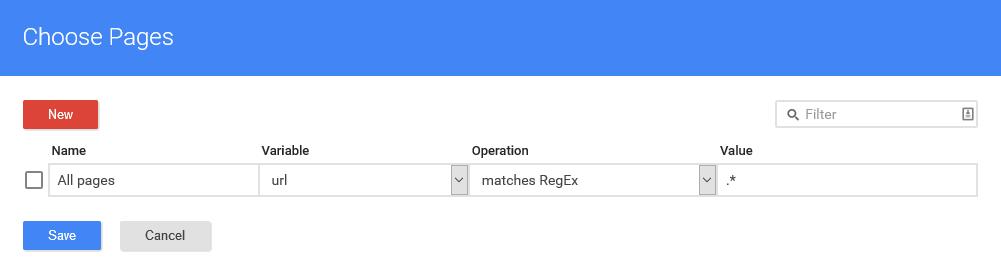
Once your triggers are set, publish the tag in the usual way. You can now track exactly which third-party sources drive purchases and measure their true conversion value.
Test Your Pixel Before You Rely On It
Never assume a newly published tag is firing correctly — verify it first. Google Tag Manager’s built-in Preview mode lets you browse your own site with a live debug panel showing exactly which tags fired on which page, and why. Walk through your own checkout flow in Preview mode and confirm the pixel tag appears against your confirmation page before you publish it live.
It is also worth checking your browser’s network requests (via developer tools) for the actual pixel call going out to your third-party partner’s domain. If you can see the request firing with a 200 response, you can be confident the data is reaching them.
Common Mistakes That Break Third-Party Pixel Tracking
- Firing on every page load, not just conversions. If your trigger is set too broadly (e.g. “All Pages” instead of the specific confirmation URL), your partner will see inflated, meaningless traffic numbers instead of real conversions.
- Firing twice per conversion. A confirmation page that can be refreshed or revisited (e.g. via a “back” button after checkout) can fire the pixel multiple times for a single sale, overstating your true conversion volume.
- Ad blockers and cookie restrictions. A growing share of browsers block third-party tracking scripts by default. Don’t be surprised if your GTM data and your partner’s reported numbers never match exactly — use both as a directional guide rather than an exact reconciliation.
- Forgetting to test after a site redesign. Confirmation page URLs sometimes change during a rebuild. If nobody updates the trigger to match, the pixel silently stops firing with no obvious error.
Start Measuring What Matters
Third-party tracking gives you the evidence to invest confidently in your best-performing partners and cut what is not working. Explore our digital marketing solutions to see how LMG helps businesses track and optimise their campaigns, or get in touch to find out more.